How to Connect WhatsApp Business API with n8n via Wetarseel
In today’s fast-paced digital market, automated customer communication is no longer a luxury—it’s a competitive necessity. Integrating your lead management systems with the WhatsApp Business API allows your business to instantly engage prospects, run automated follow-ups, and boost overall conversion rates.
By combining the workflow automation power of n8n with Wetarseel.ai, you can build a self-sustaining, production-grade WhatsApp automation engine.
In this comprehensive developer and operations guide, we will show you step-by-step how to capture inbound leads, trigger automated 24-hour WhatsApp follow-up messages, audit your delivery statuses, and stream offline conversions back to the Meta Conversions API (CAPI).
Why Connect n8n with Wetarseel?
While n8n acts as the ultimate open-source visual workflow engine, Wetarseel serves as your robust gateway to Meta’s WhatsApp Cloud API infrastructure. Together, they bridge the gap between your operational database and your customers' favorite messaging app.
Key Business Benefits:
- Eliminate Delayed Responses: Automatically trigger personal check-ins when sales agents are busy.
- Smart Database Syncing: Automatically upsert data from triggers (like Google Sheets) directly into a central database.
- Omnichannel Safeguards: Filter out social leads (Instagram/TikTok) to protect your WhatsApp template quality and messaging limits.
- Optimized Ad Spend: Send high-quality signal data back to Meta CAPI based on lead interactions.
1- Introduction
1.1 What is WeTarseel?
WeTarseel is an omni-channel customer communication platform built on top of the official WhatsApp Business API. Key capabilities include:
- Broadcast & campaign messaging with audience segmentation
- AI-powered chatbot flow builder (drag-and-drop)
- Unified team inbox — multiple agents on one WhatsApp number
- Built-in CRM for lead management
- Click-to-WhatsApp ad integration (Facebook & Instagram)
- Webhooks and REST API for third-party integration
1.2 What is n8n?
n8n (pronounced "n-eight-n") is a fair-code, self-hostable workflow automation platform with 400+ integrations. It lets you connect any service that has an API with a visual drag-and-drop builder — or custom JavaScript/Python code when you need i
1.3 Why Integrate Them?
.integrate-table-wrapper {
max-width: 780px;
font-family: Arial, Helvetica, sans-serif;
color: #333;
}
.integrate-table-title {
font-size: 22px;
font-weight: 700;
margin: 0 0 14px 0;
line-height: 1.2;
}
.integrate-table-title .section-number {
text-decoration: underline;
margin-right: 6px;
}
.integrate-table {
width: 100%;
border-collapse: collapse;
table-layout: fixed;
background: #fff;
}
.integrate-table th,
.integrate-table td {
border: 1px solid #cfcfcf;
padding: 10px 12px;
text-align: left;
vertical-align: middle;
font-size: 14px;
line-height: 1.25;
}
.integrate-table th {
background: #2e7d32; /* Green replacing blue */
color: #fff;
font-weight: 700;
}
.integrate-table td {
background: #fff;
}
.integrate-table th:nth-child(1),
.integrate-table td:nth-child(1) {
width: 25%;
}
.integrate-table th:nth-child(2),
.integrate-table td:nth-child(2) {
width: 38%;
}
.integrate-table th:nth-child(3),
.integrate-table td:nth-child(3) {
width: 37%;
}
Use Case
WeTarseel does...
n8n does...
Lead follow-up
Sends WhatsApp template
Triggers from CRM / form
Order notifications
Delivers message to customer
Listens to Shopify/WooCommerce
Support escalation
Routes to agent inbox
Monitors ticket status changes
Drip campaigns
Sends timed message sequences
Schedules and sequences triggers
Contact sync
Keeps contact list updated
Pulls data from spreadsheet or DB
2. Prerequisites
Before you begin, make sure you have the following:
.requirements-table-wrapper {<br />
max-width: 780px;<br />
font-family: Arial, Helvetica, sans-serif;<br />
color: #333;<br />
}
/* Main Table */
.requirements-table {
width: 100%;
border-collapse: collapse;
table-layout: fixed;
background: #fff;
margin-bottom: 52px;
}
.requirements-table th,
.requirements-table td {
border: 1px solid #c7c7c7;
padding: 8px 12px;
text-align: left;
vertical-align: top;
font-size: 15px;
line-height: 1.3;
}
.requirements-table th {
background: #2e7d32; /* Green replacing blue */
color: #fff;
font-weight: 700;
}
.requirements-table th:first-child,
.requirements-table td:first-child {
width: 28%;
}
.requirements-table th:last-child,
.requirements-table td:last-child {
width: 72%;
}
/* Note Box */
.note-box {
width: 100%;
border-collapse: collapse;
table-layout: fixed;
}
.note-box td {
border: 1px solid #c7c7c7;
padding: 10px 14px;
font-size: 15px;
line-height: 1.35;
vertical-align: middle;
}
.note-label {
width: 70px;
background: #dce8d7; /* Light green replacing blue */
color: #1b5e20;
font-weight: 700;
text-align: center;
white-space: nowrap;
}
.note-content {
background: #fff;
}
Requirement | Details |
|---|---|
WeTarseel account | Active account with API access enabled (Business or Enterprise plan) |
WeTarseel API key | Found under Settings → API & Webhooks in your WeTarseel dashboard |
Approved templates | WhatsApp message templates approved by Meta for outbound messages |
n8n instance | Cloud account at n8n.cloud or self-hosted via Docker / npm |
n8n version | v1.0 or later recommended |
Basic n8n knowledge | Familiarity with nodes, triggers, and the workflow canvas |
ℹ NOTE | If you do not have API access on WeTarseel, contact support at wetarseel.ai to upgrade your plan or request API credentials. |
3. Getting Your WeTarseel API Credentials
3.1 API Key
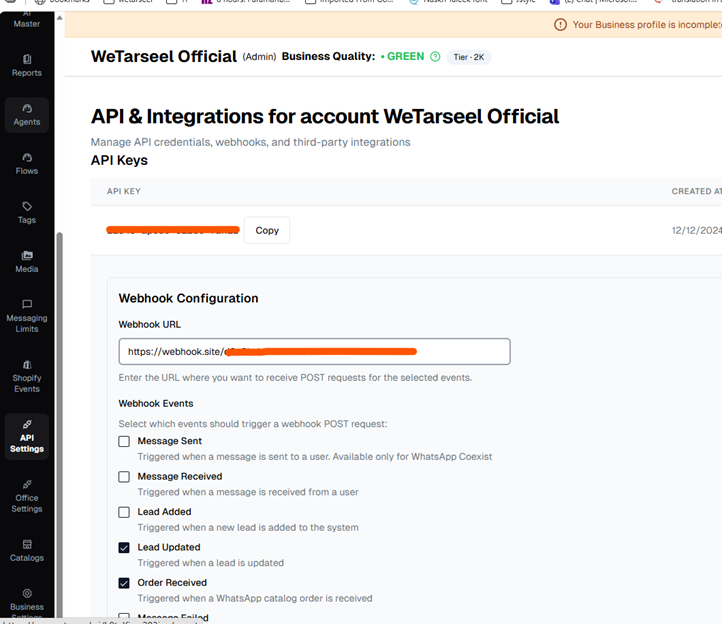
- Log in to your WeTarseel dashboard at app.wetarseel.ai
- Navigate to API Settings
- Copy your API Key store it securely (treat it like a password)
4. Setting Up n8n
4.1 Storing Your API Key Securely
Never hardcode API keys directly in nodes. Use n8n Credentials:
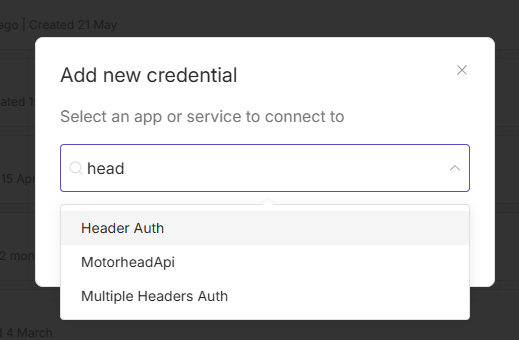
4. In n8n, go to Settings → Credentials → Add Credential
5. Choose Header Auth or Generic Credential Type
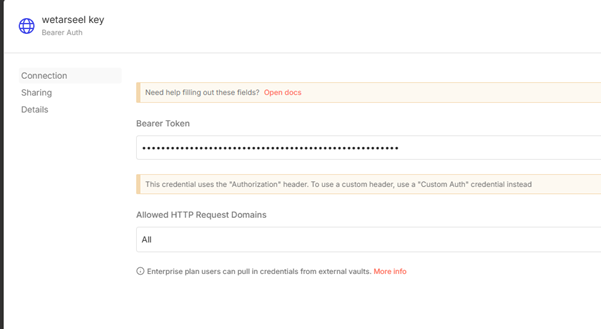
6. Set Name to "WeTarseel API"
7. Add a header field: Key = Authorization, Value = Bearer YOUR_API_KEY
8. Save the credential
⚠ WARNING | Do not paste your API key directly into HTTP Request node URL fields or body parameters. Always use n8n's credential store to prevent accidental exposure. |
4.2 The HTTP Request Node — Your Main Tool
Since WeTarseel does not yet have a dedicated n8n node, you will use the HTTP Request node to call its REST API. Here is the standard configuration:
.api-table-wrapper {
max-width: 780px;
font-family: Arial, Helvetica, sans-serif;
color: #333;
}
/* Main Table */
.api-table {
width: 100%;
border-collapse: collapse;
table-layout: fixed;
background: #fff;
}
.api-table th,
.api-table td {
border: 1px solid #c7c7c7;
padding: 8px 12px;
text-align: left;
vertical-align: top;
font-size: 15px;
line-height: 1.3;
}
.api-table th {
background: #2e7d32; /* Green replacing blue */
color: #fff;
font-weight: 700;
}
.api-table th:first-child,
.api-table td:first-child {
width: 28%;
}
.api-table th:last-child,
.api-table td:last-child {
width: 72%;
}
Field | Value |
|---|---|
Method | POST (for sending messages) / GET (for fetching data) |
Base URL | https://api.wetarseel.ai/v1 (verify in WeTarseel docs) |
Authentication | Select the credential created in Step 4.1 |
Content-Type | application/json |
Response Format | JSON |
5. Receiving Events from WeTarseel (Webhook Trigger)
Use an n8n Webhook node to listen for real-time events from WeTarseel, such as inbound customer messages, opt-ins, or delivery receipts.
5.1 Create the Webhook Node in n8n
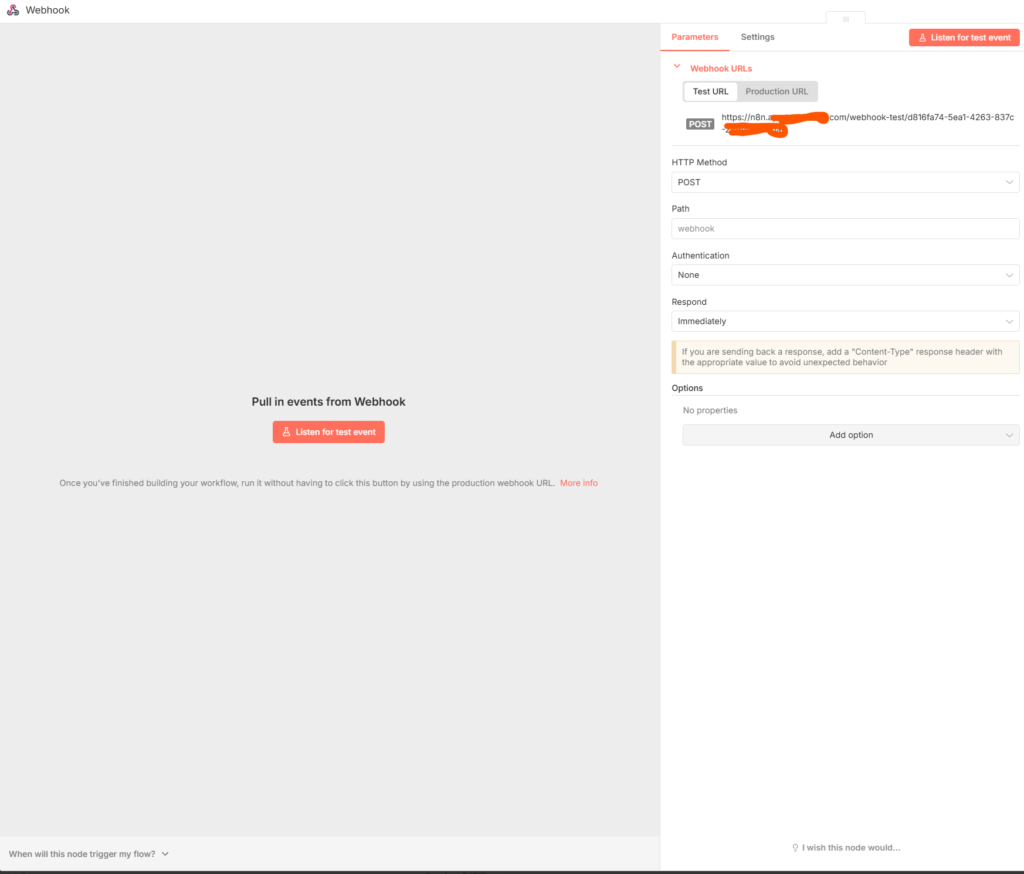
- Open your n8n workflow canvas and click + Add Node
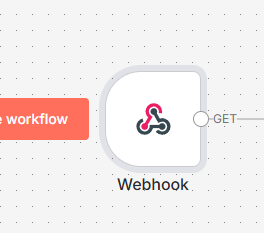
- Search for Webhook and select it as your trigger
- Set HTTP Method to POST
- Copy the Test URL shown at the top of the node panel — you will paste this into WeTarseel
- Click Listen for Test Event to activate the test listener
5.2 Register the Webhook in WeTarseel
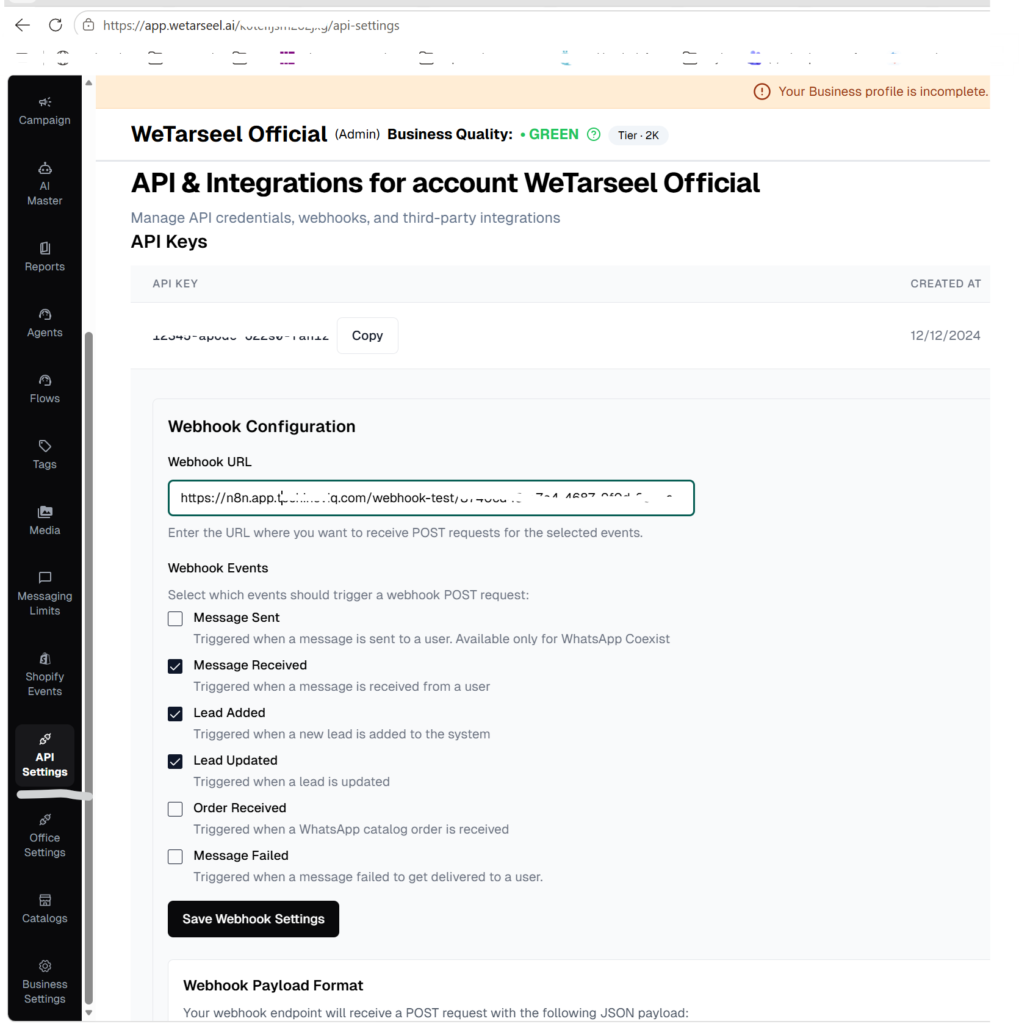
- Go to WeTarseel Settings → API & Webhooks
- Paste the n8n Test URL into the Webhook URL field
- Select which events to subscribe to (e.g., message.sent, message.received, Lead.added)
- Save the settings
- Send a test WhatsApp message to your business number to trigger a test event
5.3 Verify the Test Event
Once WeTarseel sends the test event, n8n will display the raw JSON payload in the Webhook node output. A typical inbound message payload looks like this:
"body": {
"event": "lead_updated",
"timestamp": "2026-06-02T15:17:15.742Z",
"data": {
"0": {
"id": " accountid ",
"phone_number": "9711234567",
"name": "9711234567",
"account": "accountid",
"tags": [],
"status": "New",
"country": null,
"log_id": null,
"list": null,
"active": true,
"campaign_history": null,
"numberCode": null,
"flow_state": null,
"flow_data": null,
"meta": {
"source": "whatsapp_api",
"converted_cost": ""
},
"created_by": null,
"updated_by": " accountid ",
"opt_out": null,
"replied": null,
"referral": null,
"shopify_id": null,
"blocked": null,
"created": "2026-06-02 11:43:48.561+00",
"updated": "2026-06-02 15:17:15.727+00"
}
},
"accountId": " accountid "
ℹ NOTE | Switch from Test URL to Production URL and re-register in WeTarseel before going live. The production URL stays active even when n8n is not in test mode. |
6. Sending WhatsApp Messages from n8n
6.1 Send a Template Message
WhatsApp requires pre-approved message templates for outbound messages to contacts who have not messaged you in the last 24 hours.
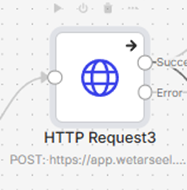
- Add an HTTP Request node after your trigger
- Configure as follows:
.endpoint-table-wrapper {<br />
max-width: 780px;<br />
font-family: Arial, Helvetica, sans-serif;<br />
color: #333;<br />
}
.endpoint-table {
width: 100%;
border-collapse: collapse;
table-layout: fixed;
background: #fff;
}
.endpoint-table th,
.endpoint-table td {
border: 1px solid #c7c7c7;
padding: 8px 12px;
text-align: left;
vertical-align: top;
font-size: 15px;
line-height: 1.3;
}
.endpoint-table th {
background: #2e7d32; /* Green replacing blue */
color: #fff;
font-weight: 700;
}
.endpoint-table th:first-child,
.endpoint-table td:first-child {
width: 28%;
}
.endpoint-table th:last-child,
.endpoint-table td:last-child {
width: 72%;
}
FieldValueMethodPOSTURL
https://app.wetarseel.ai/api/v1/send-messageAuthWeTarseel API credentialBody (JSON)See example below
Example request body:
{
"to": "971521345678",
  "template_name": "template_123",
  "parameters": [
    "{{ $json.name }}"
  ]
}
✅ TIP | Use n8n expressions ({{ $json.fieldName }}) to dynamically map data from previous nodes into the request body. This keeps your flows data-driven and reusable. |
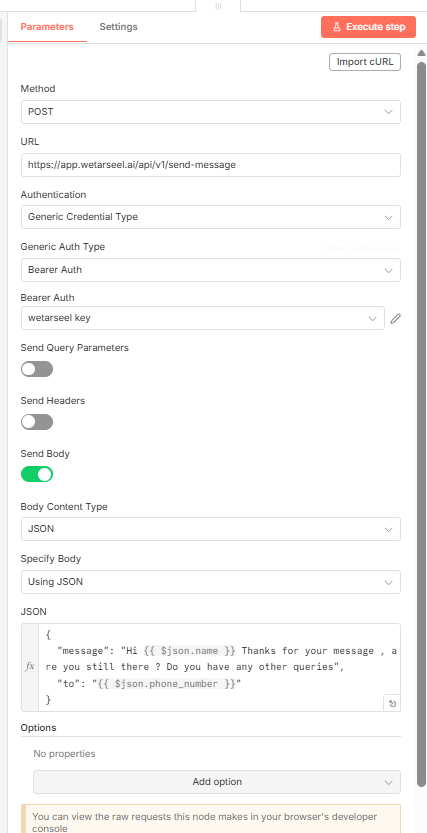
6.2 Send a Free-Form Text Message (Session Window)
Within 24 hours of a customer-initiated conversation, you can send free-form messages:
{
"message": "Hi {{ $json.name }} Thanks for your message , are you still there ? Do you have any other queries",
"to": "{{ $json.phone_number }}"
}
7. Common Workflow Recipes
Recipe 1: Auto-Reply to Inbound Messages
Trigger → WeTarseel Webhook (message.received) → IF node (filter by keyword) → HTTP Request (send reply)
- Use Case: Auto-respond to keywords like "pricing", "hours", or "support"
- Add a Switch node to branch responses by keyword
- Add a 2-second Wait node before replying for a more natural feel
Recipe 2: New Lead → WhatsApp Welcome Message
Trigger → Google Sheets / CRM webhook → HTTP Request (add contact to WeTarseel) → HTTP Request (send welcome template)
- Add a contact via POST /v1/contacts before sending the first message
- Use Set node to map CRM field names to WeTarseel's expected fields
- Log the WeTarseel message ID back to your CRM for tracking
Recipe 3: Scheduled Broadcast Reminder
Schedule Trigger (daily at 9 AM) → Google Sheets (fetch contact list) → SplitInBatches node → HTTP Request (send template per contact)
- Use SplitInBatches with a batch size of 50 to respect API rate limits
- Add a Wait node (1 second) between batches to avoid throttling
- Use an IF node to skip contacts who have opted out
Recipe 4: Shopify Order → WhatsApp Notification
Shopify Trigger (order.paid) → HTTP Request (WeTarseel send order_confirmation template) → Airtable (log record)
- Map Shopify's customer.phone to WeTarseel's "to" field
- Ensure the phone number is in international format: +923001234567
Use the Error Trigger to catch and alert on failed sends
8. Error Handling & Best Practices
8.1 Handle API Errors
- Enable "Always Output Data" on HTTP Request nodes to prevent workflow stops
- Add an IF node after each API call: check {{ $json.status }} === 'success'
- Route failures to an Error branch that sends a Slack alert or logs to a sheet
8.2 Phone Number Formatting
WeTarseel requires international format (E.164). Always sanitize phone numbers:
- Remove spaces, dashes, brackets: +92 300 1234567 → +923001234567
- Use a Code node with JavaScript: phone.replace(/D/g, '') then prepend country code
- Pakistan numbers: drop leading 0, prepend +92
8.3 Rate Limits & Throttling
- WeTarseel enforces Meta's WhatsApp sending tier limits (1,000–100,000+ messages/day based on account tier)
- Use SplitInBatches + Wait nodes for bulk sends
- WeTarseel's AI throttling adjusts limits automatically — do not try to bypass it
8.4 Template Compliance
- Only approved templates can initiate conversations outside the 24-hour window
- Get templates approved in WeTarseel's template manager before using them in flows
- Include opt-out instructions (e.g., "Reply STOP to unsubscribe") in broadcast templates
9. Troubleshooting
.troubleshooting-table-wrapper {
max-width: 780px;
font-family: Arial, Helvetica, sans-serif;
color: #333;
}
.troubleshooting-table {
width: 100%;
border-collapse: collapse;
table-layout: fixed;
background: #fff;
}
.troubleshooting-table th,
.troubleshooting-table td {
border: 1px solid #c7c7c7;
padding: 8px 12px;
text-align: left;
vertical-align: top;
font-size: 15px;
line-height: 1.3;
}
.troubleshooting-table th {
background: #2e7d32; /* Green replacing blue */
color: #fff;
font-weight: 700;
}
.troubleshooting-table th:first-child,
.troubleshooting-table td:first-child {
width: 30%;
}
.troubleshooting-table th:last-child,
.troubleshooting-table td:last-child {
width: 70%;
}
Issue | Solution |
|---|---|
401 Unauthorized | Check API key is correct and passed as Bearer token in Authorization header |
Webhook not receiving events | Ensure Production URL (not Test URL) is registered; check n8n workflow is active |
Message not delivered | Verify phone is in E.164 format; check contact has not opted out |
Template rejected | Confirm template status is APPROVED in WeTarseel; check template name spelling |
Flow runs but no WhatsApp sent | Add a debug Set node to log the full HTTP response body and check for error codes |
Rate limit error (429) | Add Wait nodes and reduce batch size; check your account's messaging tier |
10. Quick Reference
Key WeTarseel API Endpoints
For more end points login to your dashboard app.wetarseel.ai
n8n Nodes Used in This Guide
.we-tarseel-table-wrapper {
max-width: 780px;
font-family: Arial, Helvetica, sans-serif;
color: #333;
}
.we-tarseel-table {
width: 100%;
border-collapse: collapse;
table-layout: fixed;
background: #fff;
}
.we-tarseel-table th,
.we-tarseel-table td {
border: 1px solid #c7c7c7;
padding: 10px 12px;
text-align: left;
vertical-align: top;
font-size: 15px;
line-height: 1.3;
}
.we-tarseel-table th {
background: #2e7d32;
color: #fff;
font-weight: 700;
}
.we-tarseel-table th:first-child,
.we-tarseel-table td:first-child {
width: 35%;
}
.we-tarseel-table th:last-child,
.we-tarseel-table td:last-child {
width: 65%;
}
Node | Purpose |
|---|---|
Webhook | Receive events from WeTarseel in real time |
HTTP Request | Call WeTarseel API (send messages, manage contacts) |
IF / Switch | Route workflow based on message content or status |
Set | Map and transform field names between systems |
Code | Custom logic (phone formatting, data transformation) |
SplitInBatches | Process large contact lists safely |
Wait | Add delays between API calls to avoid rate limits |
Schedule Trigger | Run workflows on a timed schedule |
Error Trigger | Catch workflow failures and alert your team |
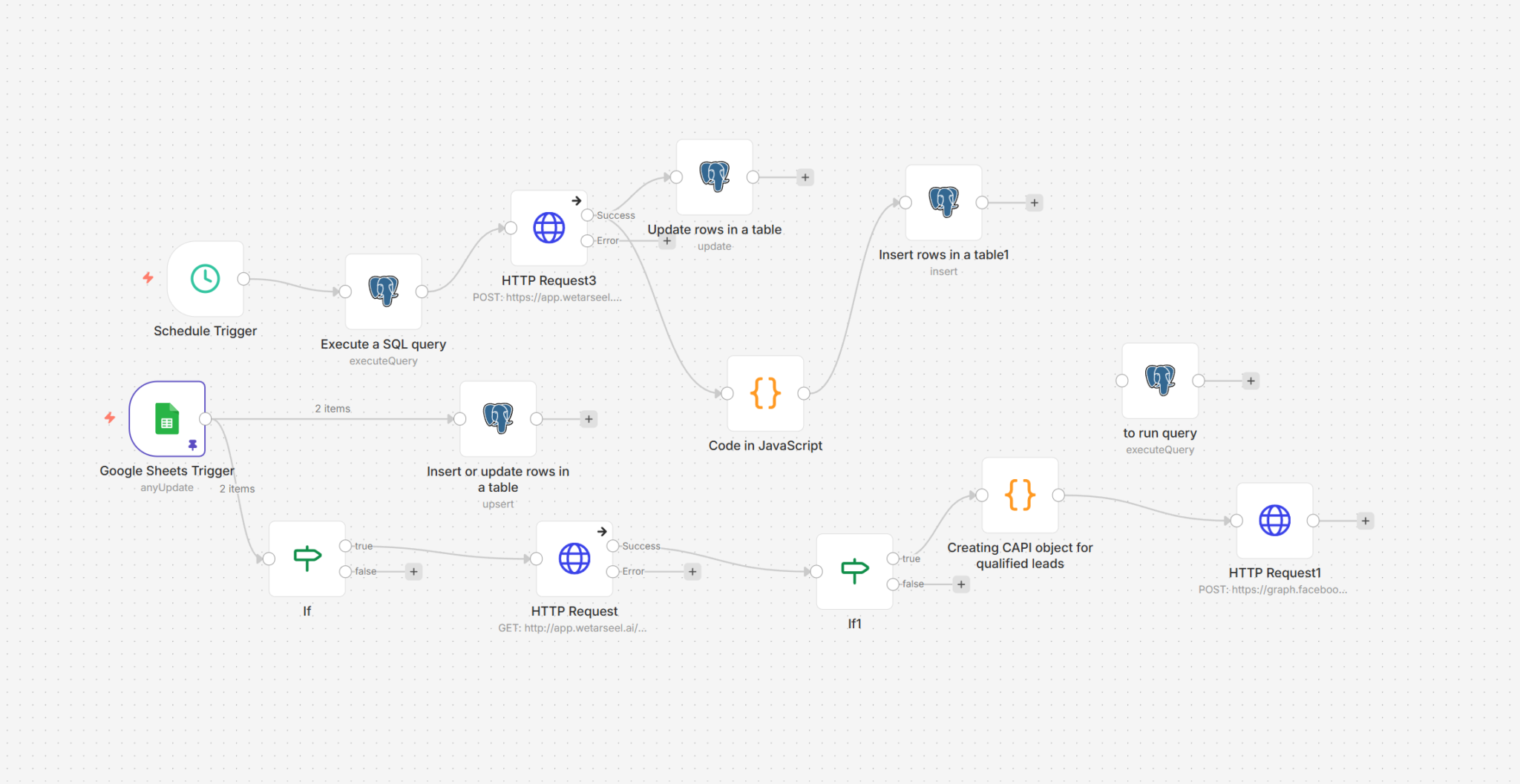
Example flows of wetarseel with N8N
Using drip Campaigns
Discussion
No comments yet